
 Canada
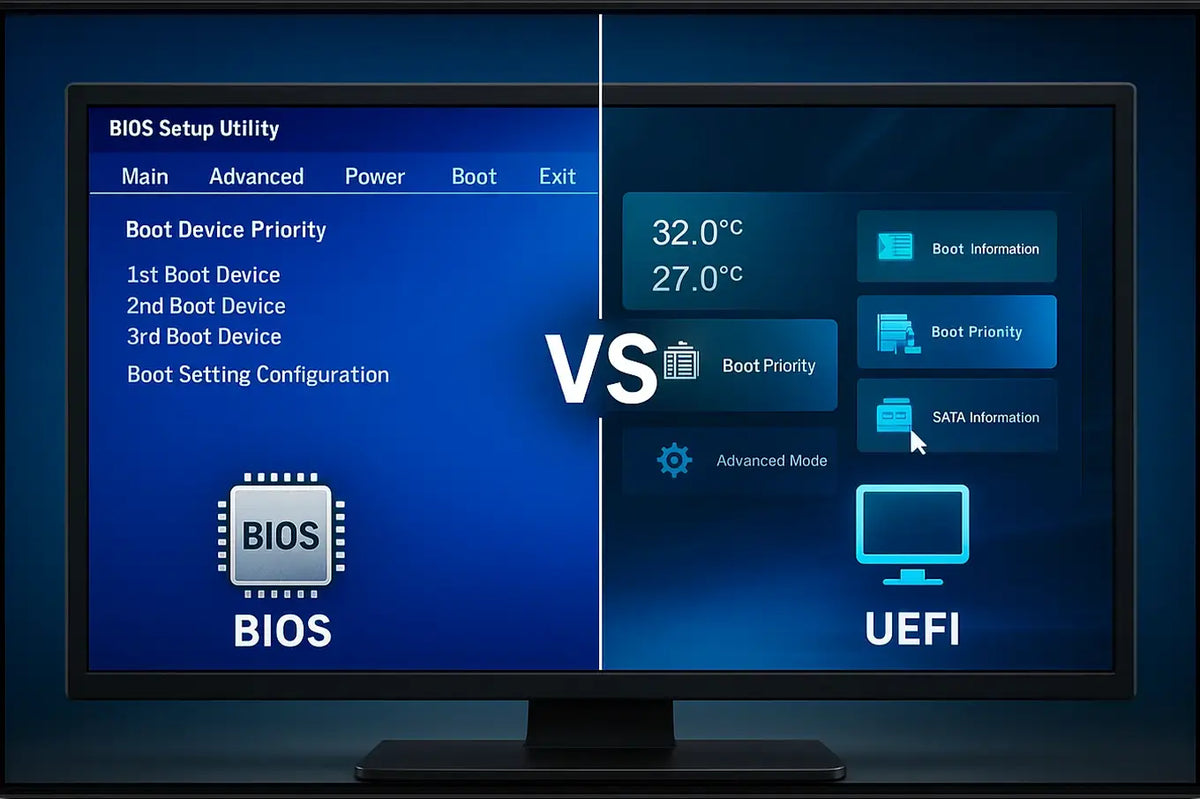
The first thing to come on the screen when you turn on your system is the firmware, not Windows, Linux, or macOS. This firmware was formerly called the BIOS, or Basic Input/Output System. However, most current computers, particularly gaming machines and high-performance systems, nevertheless employ UEFI (Unified Extensible Firmware Interface).
Your computer's boot, interaction with hardware, and even protection from current security threats depend on the BIOS vs UEFI dispute; therefore, it matters. Knowing the distinction is useful for gamers, PC builders, and tech fans in making better decisions when upgrading computers or debugging boot problems.
This blog will compare BIOS vs UEFI by covering their distinctions, the benefits of UEFI over BIOS, and why this migration is crucial for modern gaming PCs.
What is BIOS?
The conventional firmware interface that has existed since the early years of personal computing is BIOS, which stands for Basic Input/Output System. At startup, it initializes hardware components before transferring control to the operating system; it lives on a chip on the motherboard.
Vital Bios Features
-
Testing hardware conditions by running the Power-On Self-Test (POST).
-
Initial CPU, RAM, and peripheral configuration.
-
Managing the boot process (choosing from which drive to boot).
-
Give users the ability to modify boot priorities, RAM timings, and voltage, low-level settings.
Limits of BIOS
-
Slower boot times than UEFI.
-
Restricted support for up to 2TB max modern storage drives.
-
Has no inherent security capabilities.
-
A text-based interface that is not user-friendly.
Although BIOS was used in the computing industry for decades, UEFI was developed in response to the demand for quicker booting, improved compatibility, and better security.
What is UEFI?
A modern alternative to BIOS is UEFI (Unified Extensible Firmware Interface). Designed to address the constraints of its predecessor and provide a more flexible, safe, and effective firmware system, it was intended to surpass them.
Features of UEFI
-
Quicker boot times relative to BIOS.
-
It supports drives above 2TB, crucial for contemporary storage-intensive systems.
-
Secure Boot technology helps to avoid malware during the boot process.
-
A graphical interface with keyboard and mouse support.
-
Before the OS loads, UEFI can execute diagnostic tools and applications.
Most new PCs, especially modern gaming PCs, include UEFI by default as it fits present hardware and security requirements.
BIOS vs UEFI: Key Differences
| Feature | BIOS | UEFI |
|---|---|---|
| Boot Speed | Slower, takes longer to initialize | Faster, optimized boot sequence |
| Drive Support | Up to 2TB (MBR partitioning) | Supports drives larger than 2TB (GPT) |
| Interface | Text-based, keyboard-only | Graphical, mouse + keyboard |
| Security | No built-in security | Secure Boot, anti-rootkit features |
| Compatibility | Older systems and legacy hardware | Modern PCs, gaming rigs, new servers |
Advantages of UEFI over BIOS
The obvious benefits of UEFI over BIOS make it the standard option for modern systems:
-
Security: UEFI has Secure Boot, which prevents startup loads of unwanted or harmful software.
-
Hardware Fit: It manages peripherals, SSDs, and modern GPUs far better than BIOS.
-
Larger Storage Support: UEFI uses GPT partitioning to support drives beyond two terabytes.
-
Simple Use: Even beginners can simplify configuration with a user-friendly, pictorial interface.
These advantages mean faster loading times, more secure gameplay environments, and better hardware integration for modern gaming PCs.
When BIOS Still Counts
Although UEFI is currently prevalent, in some situations, BIOS still contributes:
-
Historical hardware support, some antique parts only function on BIOS.
-
Older computers made before 2010 may not provide UEFI compatibility.
-
Certain built-in systems or backward compatibility requirements still depend on BIOS.
-
For most PC builders and players, though, UEFI is the obvious winner.
-
How to determine whether your computer runs either UEFI or BIOS.
How to Check if Your PC Uses BIOS or UEFI
Here's how to determine:
Method 1: Command Line
Open Command Prompt as Administrator.
-
Type msinfo32 in the Command Prompt and press Enter.
-
Under ‘System Summary,’ check the ‘BIOS Mode’ entry; it will show either Legacy (BIOS) or UEFI.
Method 2: System Information Help
-
Search the Windows information system.
-
Under System Summary, examine the entry for the BIOS mode.
Before making changes such as allowing Secure Boot or installing high-capacity drives, gamers updating their systems absolutely must do this check.
Future Direction of BIOS against UEFI
One future is certain: UEFI will be with us for a long time.
-
Intel and AMD are progressively eliminating BIOS and shifting toward UEFI-only systems.
-
Due to security concerns and hardware restrictions, BIOS is dying away.
-
For PC builders and gamers, this means embracing UEFI is a need for future-proof setups, not just an option.
Wrap Up
The BIOS vs UEFI debate isn’t just technical jargon; it directly impacts your PC’s boot speed, hardware compatibility, storage capacity, and security. While BIOS has historical significance, UEFI clearly outperforms it for modern systems, especially gaming rigs and high-performance PCs.
Understanding the differences ensures you make the right choice when building, upgrading, or maintaining your computer.
Looking to optimize your PC or build a future-proof gaming setup? At TechnoidGamingPC Blog, we offer expert guides, tips, and solutions for gamers, programmers, and tech enthusiasts.
Explore our blog today and take your system to the next level!
People May Ask
For gaming, is UEFI superior to BIOS?
Indeed. UEFI is perfect for gaming systems because it provides faster boot times, better hardware support, and enhanced security.
Is it possible to convert from BIOS to UEFI?
Indeed, the majority of contemporary systems permit partitioning (MBR to GPT) to convert BIOS to UEFI, but always make a backup of your data first.
Does UEFI make a PC faster?
UEFI reduces boot time and optimizes startup, but overall gaming performance depends on your CPU, GPU, and RAM.
Is the BIOS outdated?
Yes. BIOS is largely obsolete, with most manufacturers moving entirely to UEFI.
Do all motherboards now use UEFI?
Almost all new motherboards use UEFI by default, though some offer BIOS-compatibility modes for legacy support.